
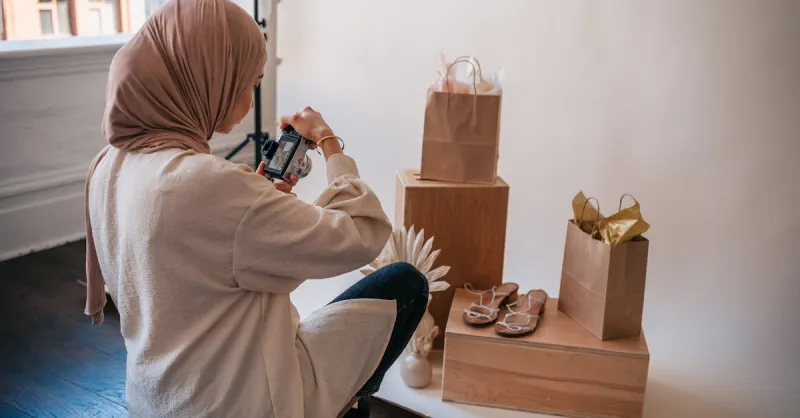
Batch product photography is not about moving fast with a camera. It is about removing decisions before the shoot starts. If every SKU needs a new angle debate, lighting adjustment, filename guess, and retouching decision, 50 products will take two days. If the workflow is fixed, one small team can shoot a large catalog without making the images look rushed.
Step 1: Build The Shot List Before Products Reach The Table
Start with a spreadsheet, not a camera. The shot list is the source of truth for the day.
| Column | Example | Why It Matters |
|---|---|---|
| SKU | BAG-BLK-001 |
Connects photos to inventory |
| Product group | Crossbody bags | Lets you batch by setup |
| Required shots | Front, side, inside, strap, lifestyle | Prevents missed angles |
| Variant detail | Black leather, gold hardware | Keeps variants accurate |
| Image role | Main, detail, size, packaging | Guides crop and composition |
| Notes | Show inner zipper pocket | Captures selling points |
| Status | Prepped, shot, checked, edited | Tracks progress |
Group products by lighting and physical setup. Shoot all small reflective items together, all apparel flat lays together, all boxes together, and all furniture details together. Changing from jewelry to backpacks to glassware every 10 minutes is where time disappears.
Step 2: Prep Products Like A Production Line
The camera records what is in front of it. Retouching cannot fully fix wrinkled fabric, dusty packaging, bent labels, or fingerprints on glossy surfaces.
Create a prep station next to the photo area:
- microfiber cloths
- lint roller
- steamer or handheld iron
- gloves for reflective products
- tape, clips, fishing line, and museum putty
- spare batteries and chargers
- product labels or sticky notes for SKU tracking
For apparel, steam first and let items cool on hangers. For jewelry, clean before every close-up. For electronics, remove screen dust and fingerprints before the first frame. For packaged goods, choose the best-looking box for the hero image and keep damaged packaging for internal reference only.
Step 3: Lock The Lighting And Camera Position
Consistency beats creative exploration on batch day. Shopify's product photography guidance emphasizes stable setup choices: location, camera, tripod, table, white background, and reflector cards. The same principle applies even if you use studio lights.
Use this setup logic:
| Product Type | Lighting Setup | Camera Position | Background |
|---|---|---|---|
| Small non-reflective products | Window light plus reflector or two softboxes | Tripod, eye level and 45 degrees | White sweep |
| Apparel flat lay | Large soft light from one side plus fill | Overhead arm or tripod | White, gray, or brand-color paper |
| Jewelry | Soft tent or diffused side lights | Tripod, macro-friendly distance | Matte neutral surface |
| Electronics | Large diffused light, flags for reflections | Eye level plus detail angle | White or dark neutral |
| Furniture | Large room light or soft window light | Wider lens, fixed height | Real room or neutral wall |
Once the lighting is right, mark everything with tape: tripod feet, table legs, product center point, background edge, light stand positions. If something gets bumped, you can reset quickly.
Step 4: Shoot In Passes, Not Product By Product
The slow way is to finish every image for SKU 1, then repeat for SKU 2. The faster way is to shoot one image role across the whole group.
Example for 50 skincare bottles:
- Front hero for all 50.
- Side packaging for all 50.
- Back ingredient label for all 50.
- Texture close-up for all 50.
- Group or bundle shots.
- Size comparison shots.
This reduces camera changes and keeps lighting consistent. It also makes quality control easier because similar shots sit next to each other in the folder.
For products that require assembly or styling, shoot by setup instead:
| Setup | Shoot These Before Changing |
|---|---|
| White-background front view | Every product in the group |
| Detail close-up setup | Every zipper, clasp, texture, port, label |
| Size or scale setup | Every product that needs dimensions or hand/body reference |
| Lifestyle setup | All products that share the same props |
Step 5: Use A Naming System That Survives Handoff
Bad filenames create expensive confusion. Do not name files IMG_4821_final_final2.jpg.
Use a pattern:
SKU_role_angle_sequence.ext
BAG-BLK-001_main_front_01.jpg
BAG-BLK-001_detail_zipper_02.jpg
BAG-BLK-001_size_front_03.jpg
If the photographer, editor, marketplace manager, and ad buyer all use the same names, fewer images land on the wrong listing.
Create four folders:
| Folder | Use |
|---|---|
01_raw |
Camera originals |
02_selects |
Approved selects only |
03_editing |
Files in retouching |
04_exports |
Marketplace-ready exports |
Never edit over the raw files. The raw folder is insurance.
Step 6: Quality-Control While The Set Is Still Standing
Do not wait until the next morning to discover that all white products are gray, all labels are crooked, or one variant is missing.
Check every batch on a larger screen before breaking the setup:
- Is the product sharp at 100%?
- Is the color close to the real item?
- Is the label straight and readable?
- Is the product centered consistently?
- Are all required angles complete?
- Are variant colors named correctly?
- Are reflective surfaces clean?
- Does the image still work as a mobile thumbnail?
For dimension or size-reference images, check whether the measurement is visible without zooming. If the product is small, add a clean secondary image with a ruler-style dimension line, hand reference, coin reference, or common-object comparison.
Step 7: Batch Edit Without Flattening Product Truth
Batch editing is useful for exposure, white balance, crop ratio, and export sizing. It is dangerous when it hides real product differences.
Good batch edits:
- consistent white balance
- lens correction
- background cleanup
- crop ratio
- shadow consistency
- filename export
Risky batch edits:
- heavy saturation that changes product color
- aggressive skin smoothing on apparel models
- removing natural texture from fabric or leather
- copy-pasting the same color correction across different materials
- sharpening so hard that edges look artificial
Lightroom-style workflows can apply edits across multiple photos, and tools built for e-commerce catalog work can apply the same background, crop, shadow, or framing rules across a batch. Use those tools for repeatable technical cleanup, then inspect color-sensitive items manually.
Step 8: Export By Platform, Not Once For Everything
One master file is not enough. A marketplace main image, Shopify gallery image, ad creative, and email crop may need different exports.
| Destination | Export Notes |
|---|---|
| Amazon main image | Clean product image, rule-compliant background, no forbidden overlay |
| Amazon secondary image | Size, detail, benefit, packaging, use-case images |
| Shopify product page | Optimized file size, strong alt text, variant match |
| Google Shopping | Clean product image URL, no promotional overlay |
| Social ads | Platform-specific crop and more context |
| Internal archive | High-resolution master for future edits |
Shopify warns that overly large images can slow page loading and recommends optimizing files for the web. That does not mean exporting tiny blurry photos. Keep a high-resolution master, then create web exports with the right compression for each destination.
Batch Day Timeline
| Time | Work |
|---|---|
| 8:00-8:30 | Final product prep, clean set, test lighting |
| 8:30-9:00 | Shoot and review first 3 SKUs |
| 9:00-11:00 | Main images for first product group |
| 11:00-12:00 | Detail and scale images |
| 12:00-12:30 | Backup files and quick QC |
| 13:30-15:30 | Second product group |
| 15:30-16:30 | Lifestyle or bundle setups |
| 16:30-17:00 | Missing-shot check |
| 17:00-18:00 | Selects, folder cleanup, editor handoff |
The first 30 minutes are not wasted time. They prevent hours of retouching and reshoots.
FAQ
Can one person shoot 50 SKUs in a day?
Yes, if the products are simple, prepped, and grouped by setup. For apparel, jewelry, reflective items, or anything that needs styling, use at least two people: one shooting and one prepping the next product.
Does batch shooting make product photos look generic?
Only if every image uses the same composition with no product-specific detail. Keep the core setup consistent, but add a detail shot, scale shot, or use-case image that answers the buyer's biggest question for that SKU.
Should I shoot white-background and lifestyle images on the same day?
Yes, but separate them into blocks. Finish the white-background production first, then switch to lifestyle. Mixing the two throughout the day creates setup drag.
What should I outsource?
Outsource retouching when your bottleneck is cleanup, clipping paths, dust removal, or export resizing. Keep shot planning and final approval close to the seller team because you know which details reduce buyer hesitation.
How do I avoid missing a required image?
Use a shot list with status columns and check images before dismantling each setup. The missing image is always cheaper to capture while the lights, product, and props are still in place.